There is a September 2010 Labs release of Access Control Service ACS at the following link http://acs.codeplex.com/ . This ACS samples and documentation project is intended to be used with an Azure AppFabric labs portal account. The above link takes you to the home page which lists the key features of ACS.
There is a getting started section http://acs.codeplex.com/wikipage?title=Getting%20Started&referringTitle=Home if you want to dive right in, starting with creating an ACS namespace, adding identity providers, setup relying party, create rules, define signing credentials and integrate with Visual Studio.
Working with the Management Portal page http://acs.codeplex.com/wikipage?title=Working%20with%20the%20Management%20Portal&referringTitle=Documentation , this documentation covers managing ACS configuration. Provides step by step instructions on how to work with the various ACS resources available in the management portal.
A videos walkthrough page is available at http://acs.codeplex.com/wikipage?title=Videos&referringTitle=Home .
The download ACS samples page http://acs.codeplex.com/releases/view/53011 . The readme's for the samples http://acs.codeplex.com/wikipage?title=Samples .
The prerequisites page can be found here http://acs.codeplex.com/wikipage?title=Prerequisites&referringTitle=Home , Visual Studio 2010 any edition, .NET4 or 3.5 SP1, WIF Runtime and SDK are among the requirements.
Thursday, October 21, 2010
Windows Azure AppFabric
For an good introduction to Service Bus and Access Control check out the following link
http://www.microsoft.com/windowsazure/appfabric/#appfablabs
Windows Azure AppFabric SDK (Sept 2010 UPDATE) download can be found at
http://www.microsoft.com/downloads/en/details.aspx?FamilyID=39856a03-1490-4283-908f-c8bf0bfad8a5&displaylang=en
32bit and 64bit SDK versions are available. Also, code samples for VB & C# and AppFabricDocs. The docs download is blocked for security, so once you have downloaded the docs, right click the docs file, select properties, click unblock then click Apply and OK. The docs can be read offline.
Windows Azure AppFabric Labs (Aug 2010 UPDATE) download can be found at
http://www.microsoft.com/downloads/en/details.aspx?FamilyID=D89640FC-C552-446E-AEAD-B1E0D940F31B
There are 2 files to download, the Service Bus.config.txt file and release notes(html) file. There is no SDK to download here, you need to download and install the win. Azure AppFabric SDK.
http://www.microsoft.com/windowsazure/appfabric/#appfablabs
Windows Azure AppFabric SDK (Sept 2010 UPDATE) download can be found at
http://www.microsoft.com/downloads/en/details.aspx?FamilyID=39856a03-1490-4283-908f-c8bf0bfad8a5&displaylang=en
32bit and 64bit SDK versions are available. Also, code samples for VB & C# and AppFabricDocs. The docs download is blocked for security, so once you have downloaded the docs, right click the docs file, select properties, click unblock then click Apply and OK. The docs can be read offline.
Windows Azure AppFabric Labs (Aug 2010 UPDATE) download can be found at
http://www.microsoft.com/downloads/en/details.aspx?FamilyID=D89640FC-C552-446E-AEAD-B1E0D940F31B
There are 2 files to download, the Service Bus.config.txt file and release notes(html) file. There is no SDK to download here, you need to download and install the win. Azure AppFabric SDK.

Windows Azure AppFabric ACM.EXE and ACMBrowser
ACM.exe is an Azure AppFabric Access Control Management Tool, it is a command line tool for performing management operations on Azure AppFabric Access Control resources that reside on Azure cloud. ACMBrowser is a WPF GUI version.
When you need to create, update and delete Access Control resources these tools can be run on local machines, once you have made the necessary changes, the changes can be saved to the cloud. Both tools communicate with the Access Control Management Service in Azure, saving you from having to sign in to your portal account everytime.
Currently these tools do not work if you have an Azure AppFabric Labs Portal Account, they are intended for Azure AppFabric Portal Account holders.
The Acm.exe tool can be found in the Azure AppFabric SDK download in the \Tools folder.
Before you can utilize this tool you need to add a management key (can be found on the service namespace page), and the service namespace you are using, to the Acm.exe.config file. The Acm.exe.config file can be found in the \Tools folder of the Win Azure AppFabric SDK download.
When you open the Acm.exe.config file, it contains the following-
Creating an Access Control resource such as an Issuer using the Acm.exe tool, open a command window, change directory to the ProgramFiles\...AppFabric SDK\V1.0\Tools.
To create an Issuer credential called owner, enter the following:
acm create issuer -name:owner -issuername:(enter a display name here) -autogeneratekey
If all goes well an ID and the object was created successfully will be displayed.
The GUI Tool ACMBrowser can be found in your AppFabricSamplesSDK download, go to the following directory
AppFabricSamples\AccessControl\ExploringFeatures\Management\AcmBrowser
Build and run AcmBrowser solution in Visual Studio.
When you need to create, update and delete Access Control resources these tools can be run on local machines, once you have made the necessary changes, the changes can be saved to the cloud. Both tools communicate with the Access Control Management Service in Azure, saving you from having to sign in to your portal account everytime.
Currently these tools do not work if you have an Azure AppFabric Labs Portal Account, they are intended for Azure AppFabric Portal Account holders.
The Acm.exe tool can be found in the Azure AppFabric SDK download in the \Tools folder.
Before you can utilize this tool you need to add a management key (can be found on the service namespace page), and the service namespace you are using, to the Acm.exe.config file. The Acm.exe.config file can be found in the \Tools folder of the Win Azure AppFabric SDK download.
When you open the Acm.exe.config file, it contains the following-
<?xml version="1.0" encoding="utf-8" ?>


<configuration>


  <appSettings>


    <add key="host" value="accesscontrol.windows.net"/>


    <add key="service" value=""/>


    <add key="mgmtkey" value=""/>


  </appSettings>


</configuration>
Creating an Access Control resource such as an Issuer using the Acm.exe tool, open a command window, change directory to the ProgramFiles\...AppFabric SDK\V1.0\Tools.
To create an Issuer credential called owner, enter the following:
acm create issuer -name:owner
If all goes well an ID and the object was created successfully will be displayed.
The GUI Tool ACMBrowser can be found in your AppFabricSamplesSDK download, go to the following directory
AppFabricSamples\AccessControl\ExploringFeatures\Management\AcmBrowser
Build and run AcmBrowser solution in Visual Studio.
Wednesday, October 20, 2010
Microsoft TechEd Australia Aug 2010 Videos
Sessions are now available to view online.
Win Azure Platform AppFabric Overview (74 mins)
http://www.msteched.com/2010/Australia/COS230
The Business of Cloud Computing (76 mins)- cloud based PaaS and SaaS
http://www.msteched.com/2010/Australia/ARC206
Cloud Secret Sauce and what you can cook with it (72 mins)
http://www.msteched.com/2010/Australia/ARC203
Azure in the Real World Concept to Cloud (62mins) - what makes a good cloud app
http://www.msteched.com/2010/Australia/VOC206
Cloud Oriented Architecture in a retail business scenario (60 mins) - how to leverage azure appfabric service bus to connect together different areas of a retail business
http://www.msteched.com/2010/Australia/ARC205
Win Server AppFabric:Simplifiying the life of WCF WF Dev's (65 mins) - build config free WCF services using .Net, config and manage services using AppFabric Hosting Services
http://www.msteched.com/2010/Australia/DEV322
How do you secure cloud? (70 mins) - demistifying cloud security
http://www.msteched.com/2010/Australia/SEC308
Win Azure Platform AppFabric Overview (74 mins)
http://www.msteched.com/2010/Australia/COS230
The Business of Cloud Computing (76 mins)- cloud based PaaS and SaaS
http://www.msteched.com/2010/Australia/ARC206
Cloud Secret Sauce and what you can cook with it (72 mins)
http://www.msteched.com/2010/Australia/ARC203
Azure in the Real World Concept to Cloud (62mins) - what makes a good cloud app
http://www.msteched.com/2010/Australia/VOC206
Cloud Oriented Architecture in a retail business scenario (60 mins) - how to leverage azure appfabric service bus to connect together different areas of a retail business
http://www.msteched.com/2010/Australia/ARC205
Win Server AppFabric:Simplifiying the life of WCF WF Dev's (65 mins) - build config free WCF services using .Net, config and manage services using AppFabric Hosting Services
http://www.msteched.com/2010/Australia/DEV322
How do you secure cloud? (70 mins) - demistifying cloud security
http://www.msteched.com/2010/Australia/SEC308
WCF, HTTP Server API, Namespace Reservations and Access Control List
Http server API or Http.sys is a kernel mode http driver with port sharing capabilities which means more than one application can listen on the same port.
Http server API enables applications to communicate over http, applications can register to receive http requests for specified URL's and send http responses. An application not hosted in IIS and in a non-administrator account cannot bind to the http namespace at run time without an administrator reserving the namespace. This is a requirement of http.sys.
A http namespace reservation allocates a part of the URL namespace to a user (or users), allowing the user to own that part of the namespace. An administrator can make this reservation for a specified URL on behalf of a user and their application. The application is then registered to receive and serve incoming service requests for the URL namespace .
The http server API does not allow users to register URL's from parts of the namespace they do not own. For namespace security ACL's (access control list) are applied to the part of the namespace reserved for each user.
Netsh.exe tool is used when manually configuring WCF using http/s. In windows 7 from an administrator account, to give a WCF web service called httpEchoService access rights to the namespace, launch a command window and enter the following
A reservation has now been made for the specified URL, this allows the application to bind to the http namespace at run time.
A hierarchical structure is used with namespace reservations. If the following namespace 'http://anyname.com:80/' is reserved, so are all the subnamespaces, for eg.
'http://anyname.com:80/app1' is a reserved subnamespace.
When using Microsoft Visual Studio, to enable users without administrator privileges to develop WCF web services, an ACL is created for the following namespace http://+:8731/Design_Time_Addresses during installation of Visual Studio.
Administrators can add/remove users from this ACL, or open additional ports. This ACL allows users access to the WCF service auto host (wcfsvchost.exe) without granting them administrator privileges.
For more information on OS's, tools and commands see this link
http://msdn.microsoft.com/en-us/library/ms733768.aspx
More information on namespace reservations can be found at
http://msdn.microsoft.com/en-us/library/aa364673%28VS.85%29.aspx%20
Http server API enables applications to communicate over http, applications can register to receive http requests for specified URL's and send http responses. An application not hosted in IIS and in a non-administrator account cannot bind to the http namespace at run time without an administrator reserving the namespace. This is a requirement of http.sys.
A http namespace reservation allocates a part of the URL namespace to a user (or users), allowing the user to own that part of the namespace. An administrator can make this reservation for a specified URL on behalf of a user and their application. The application is then registered to receive and serve incoming service requests for the URL namespace .
The http server API does not allow users to register URL's from parts of the namespace they do not own. For namespace security ACL's (access control list) are applied to the part of the namespace reserved for each user.
Netsh.exe tool is used when manually configuring WCF using http/s. In windows 7 from an administrator account, to give a WCF web service called httpEchoService access rights to the namespace, launch a command window and enter the following
netsh http add urlacl url=http://+:80/httpEchoService/ user=<your local machine name>A reservation has now been made for the specified URL, this allows the application to bind to the http namespace at run time.
A hierarchical structure is used with namespace reservations. If the following namespace 'http://anyname.com:80/' is reserved, so are all the subnamespaces, for eg.
'http://anyname.com:80/app1' is a reserved subnamespace.
When using Microsoft Visual Studio, to enable users without administrator privileges to develop WCF web services, an ACL is created for the following namespace http://+:8731/Design_Time_Addresses during installation of Visual Studio.
Administrators can add/remove users from this ACL, or open additional ports. This ACL allows users access to the WCF service auto host (wcfsvchost.exe) without granting them administrator privileges.
For more information on OS's, tools and commands see this link
http://msdn.microsoft.com/en-us/library/ms733768.aspx
More information on namespace reservations can be found at
http://msdn.microsoft.com/en-us/library/aa364673%28VS.85%29.aspx%20
Wednesday, October 13, 2010
Free Windows Azure Platform Book
Windows Azure Platform: Articles from the trenches vol.1 was written by 15 developers sharing their experiences of the platform, combining 20 articles ranging from getting started to best practices. The book can be viewed on-line at:
http://www.slideshare.net/ericnelson/windows-azure-platform-articles-from-the-trenches-volume-one
or can be purchased as a paperback.
Chapter 1: Getting started with Win Azure covers creating an account, creating, packaging and deploying an application plus best tools to use.
Chapter 2: Architecting for Azure covers principles, cost, risk, development and test environment and running java code on Windows Azure.
Chapter 3: Windows Azure covers scaling, blob storage, queries and tables, worker roles, logging and health monitoring and roles.
Chapter 4: SQL Azure goes through process of creating an account, using sql portal and creating a DB.
Chapter 5: Windows Azure Platform AppFabric covers real time tracing of Azure roles.
http://www.slideshare.net/ericnelson/windows-azure-platform-articles-from-the-trenches-volume-one
or can be purchased as a paperback.
Chapter 1: Getting started with Win Azure covers creating an account, creating, packaging and deploying an application plus best tools to use.
Chapter 2: Architecting for Azure covers principles, cost, risk, development and test environment and running java code on Windows Azure.
Chapter 3: Windows Azure covers scaling, blob storage, queries and tables, worker roles, logging and health monitoring and roles.
Chapter 4: SQL Azure goes through process of creating an account, using sql portal and creating a DB.
Chapter 5: Windows Azure Platform AppFabric covers real time tracing of Azure roles.
Fiddler 2, WCF and .NET
If you are developing WCF web services using ASP.NET Development Server (runs asp.net app's locally) and you are using localhost, Fiddler will not be able to monitor any request/response traffic. Fiddler is bypassed if localhost is used.
Fiddler and Firefox
In Windows XP using .NET 3.5 VS2008 running a WCF REST web service (created in an ASP.NET Web App Project) you only need to replace localhost with your local machine name (a.k.a computer name), and Fiddler will monitor any requests to this service and the resulting response. Machine name can be found by right clicking 'My Computer' then selecting properties. Replacing localhost with your machine name only needs to be done on the client side (Firefox browser in this case). With an address like this
replace localhost with your local machine name
http://machinename:1355/MyService.svc/
Fiddler will now display request/response information.
Fiddler and Internet Explorer
In Windows 7 running the same service mentioned above Fiddler can be used to monitor traffic by adding '.' (a full stop) to the end of localhost in your IE url, for eg
http://localhost.:1355/MyService.svc/
Fiddler will not be bypassed and requests made using IE will be picked up together with any resulting responses.
Just Fiddler
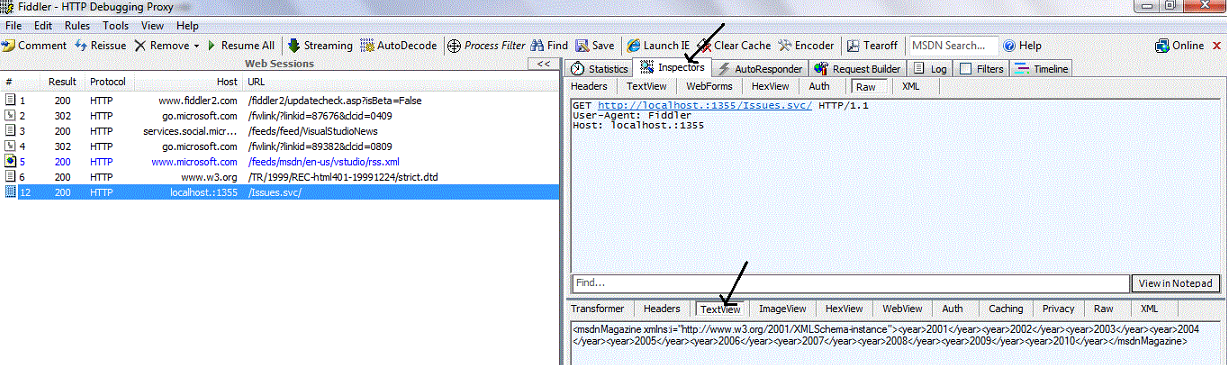
In addition to using Firefox or IE as a webclient you can also use Fiddler, click the RequestBuilder tab to enter urls. Enter a url in the textbox beneath the request builder tab.
The url you enter will appear in the left window.

Once you click on the matching url in the left window, it will be highlighted blue. Select the Inspectors tab from the menu of the top right window. The top right window displays request information, the bottom right window displays responses sent back by the service. Select the Textview tab from the menu in the bottom right window, the web service response will be displayed.

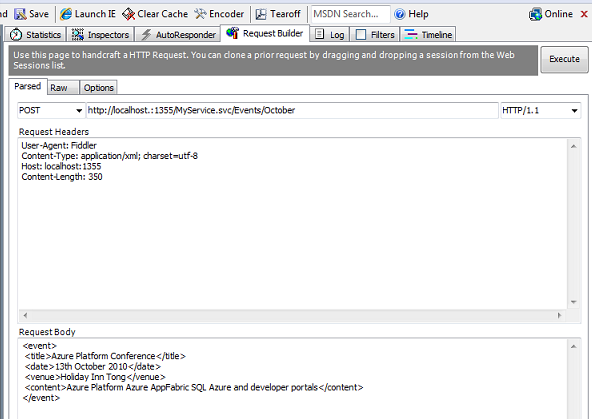
To make a post method request to a REST web service using Fiddler, enter the url then select Post method from drop down list.

In the Request Body window enter the values of your complex type object.
Fiddler and Firefox
In Windows XP using .NET 3.5 VS2008 running a WCF REST web service (created in an ASP.NET Web App Project) you only need to replace localhost with your local machine name (a.k.a computer name), and Fiddler will monitor any requests to this service and the resulting response. Machine name can be found by right clicking 'My Computer' then selecting properties. Replacing localhost with your machine name only needs to be done on the client side (Firefox browser in this case). With an address like this
http://localhost:1355/MyService.svc/
replace localhost with your local machine name
http://machinename:1355/MyService.svc/
Fiddler will now display request/response information.
Fiddler and Internet Explorer
In Windows 7 running the same service mentioned above Fiddler can be used to monitor traffic by adding '.' (a full stop) to the end of localhost in your IE url, for eg
http://localhost.:1355/MyService.svc/
Fiddler will not be bypassed and requests made using IE will be picked up together with any resulting responses.
Just Fiddler
In addition to using Firefox or IE as a webclient you can also use Fiddler, click the RequestBuilder tab to enter urls. Enter a url in the textbox beneath the request builder tab.
The url you enter will appear in the left window.

Once you click on the matching url in the left window, it will be highlighted blue. Select the Inspectors tab from the menu of the top right window. The top right window displays request information, the bottom right window displays responses sent back by the service. Select the Textview tab from the menu in the bottom right window, the web service response will be displayed.

To make a post method request to a REST web service using Fiddler, enter the url then select Post method from drop down list.

In the Request Body window enter the values of your complex type object.

Subscribe to:
Posts (Atom)